

Step-by-step guide to create, store, test, and revoke an organization API key from the API page
An API key lets a script, a CI job, or a Certora Prover client work for your organization without your password. This guide shows you how to create a key on the API page, store it, test it, and revoke it.
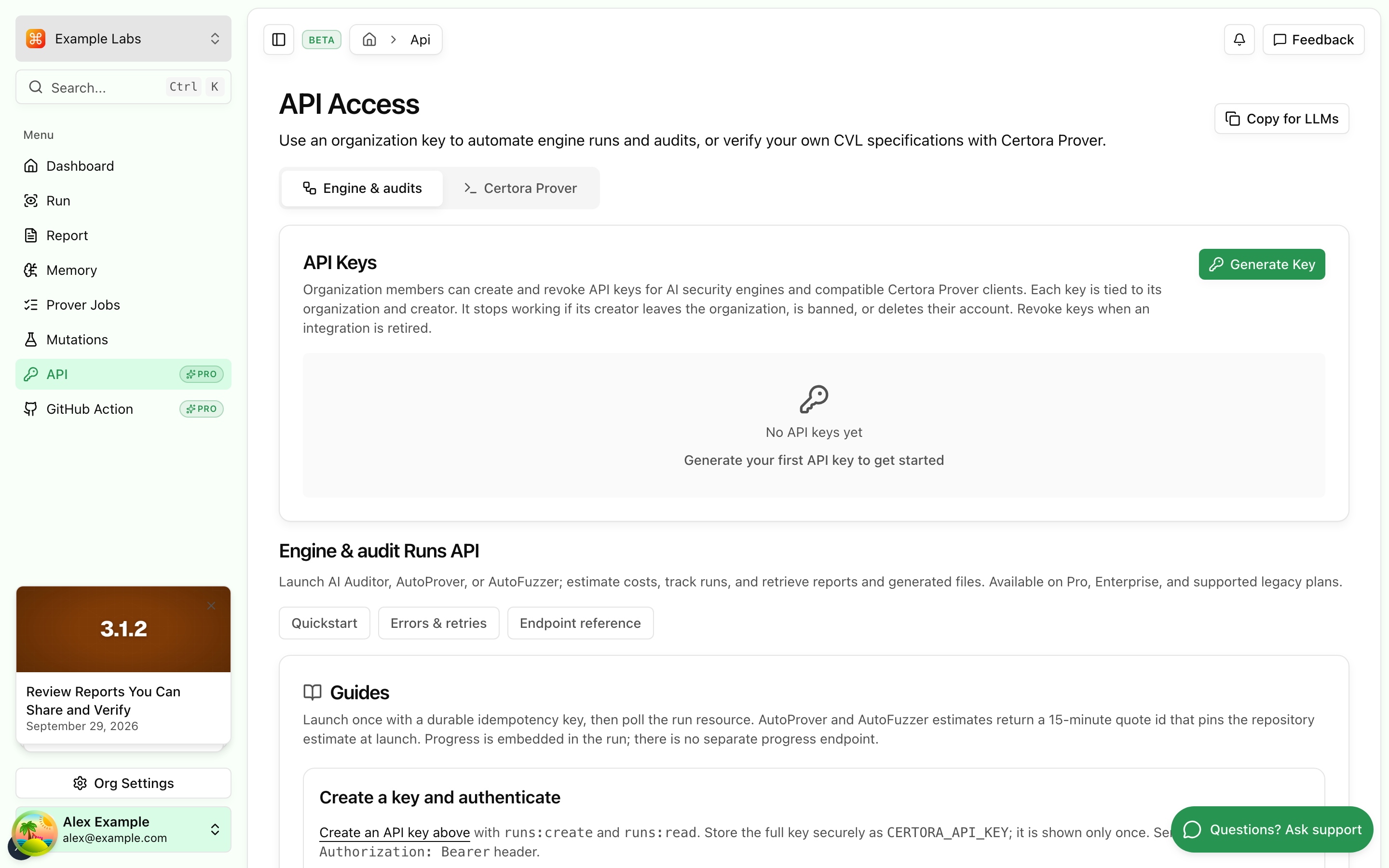
The API Access page opens. The API Keys card shows the active keys of the organization.
CI pipeline.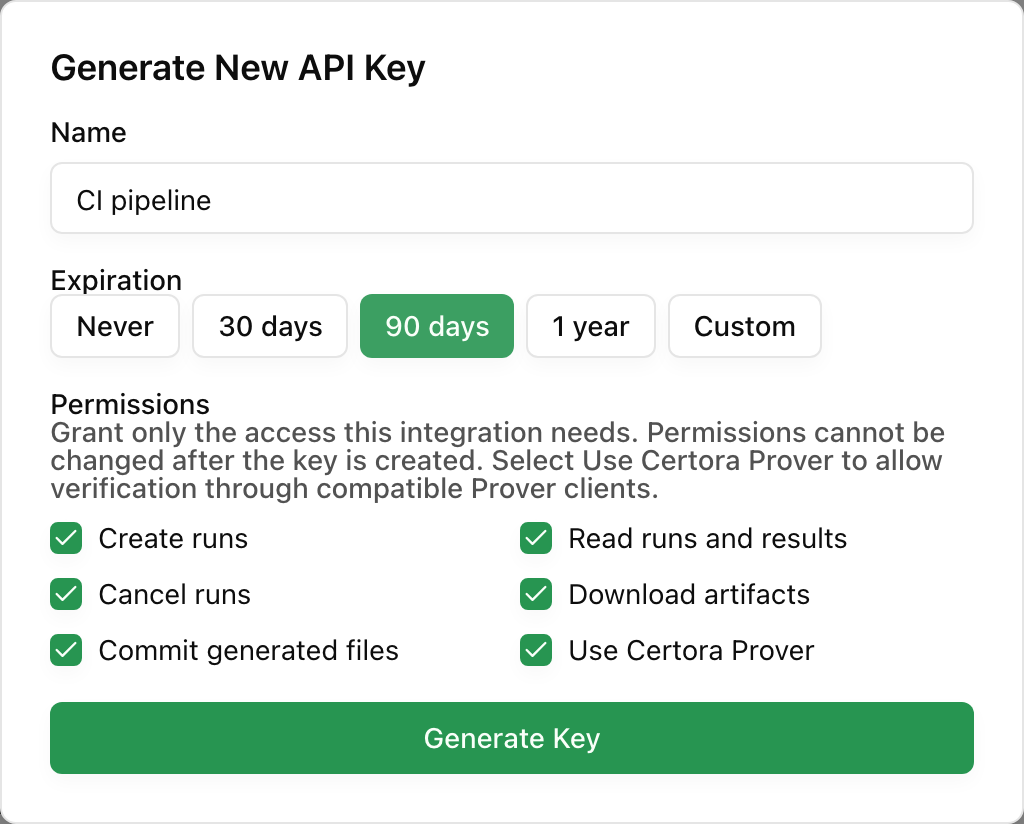
All permissions are selected when the dialog opens. You cannot change the permissions after you create the key, so give the key only what its job needs.
| Permission | Scope | The key can |
|---|---|---|
| Create runs | runs:create | Get estimates and start runs |
| Read runs and results | runs:read | List runs and read status, progress, billing, and results |
| Cancel runs | runs:cancel | Cancel runs |
| Download artifacts | artifacts:read | Download the files that AutoProver and AutoFuzzer runs make |
| Commit generated files | generated_files:write | Commit generated files to the pull request that started a run |
| Use Certora Prover | prover:access | Sign in to Certora Prover from a compatible client |
The API Key Generated dialog shows the full key. The app shows the full key only one time.
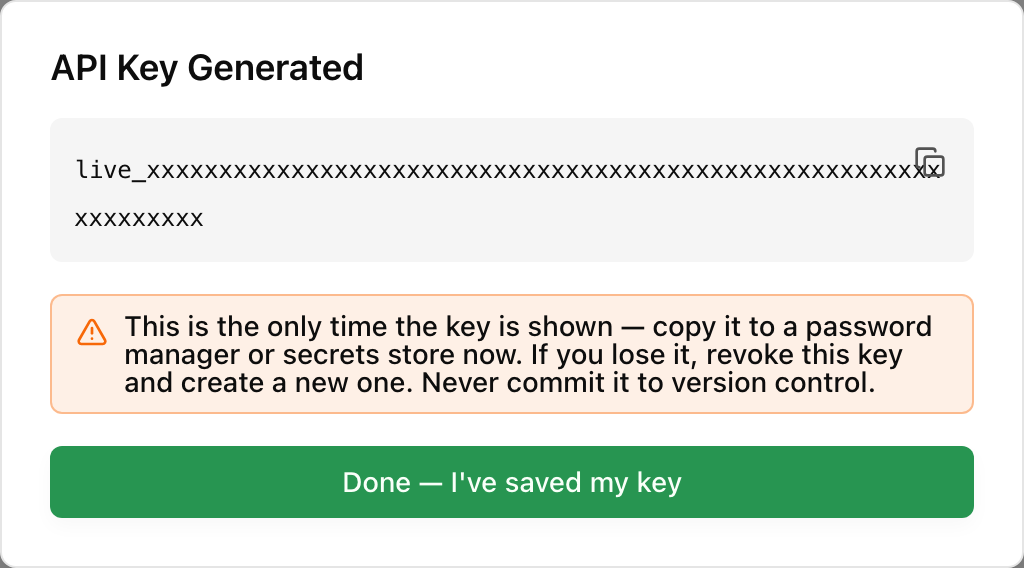
If you close the dialog before you copy the key, you cannot get the key back. Revoke that key and create a new one.
Do not put a key in a repository, in browser code, in logs, or in a request body. Anyone who has the key can start runs that your organization pays for.
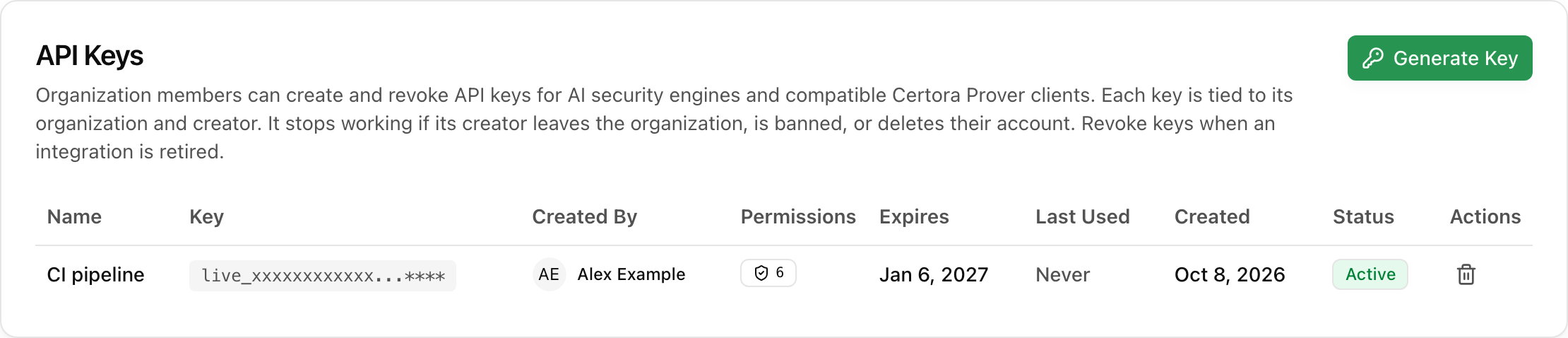
The new key is in the API Keys table with the status Active. The table shows only the start of the key. Hold the pointer on the number in the Permissions column to see the permissions of the key.
On a plan with Runs API access, send the key to GET /v2/access from a terminal. Replace <your-key> with the full key.
export CERTORA_API_KEY="<your-key>"

curl --fail-with-body \
  -H "Authorization: Bearer $CERTORA_API_KEY" \
  "https://app.certora.com/v2/access"
A key that works returns a JSON response that lists its scopes and the run types that your organization can start. After the request, the Last Used column in the table shows a time.
The REST API Reference describes every endpoint. The Certora Prover guide describes how to use a key with a Prover client.
Revoke a key when you stop using it, or immediately if someone else saw it. Any member of the organization can revoke any key.
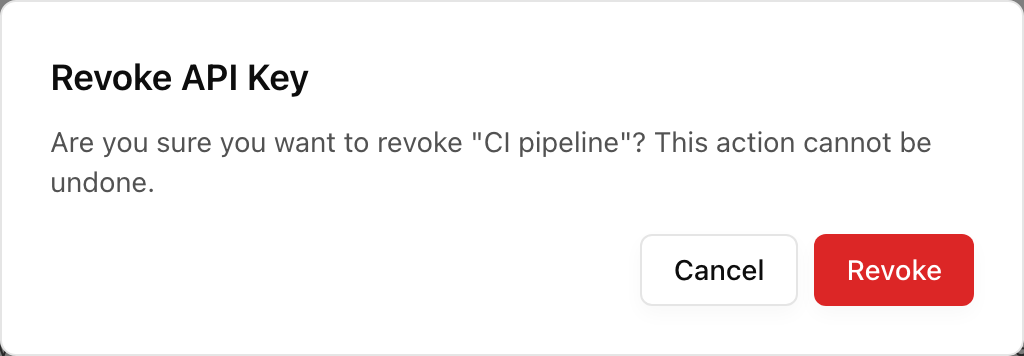
You cannot undo this step. Each request that uses a revoked key fails. Before you revoke a key that is in use, create a new key and put it in your integration.
An expired key shows the status Expired and a rotate icon in the Actions column.
An administrator turned off API access. Open Support and select Talk to a human.
The Runs API needs a Pro or Enterprise plan. An organization owner can change the plan in Settings, then Billing. On a Free plan, you can still use the API Keys card above the message. A key from a Free plan works with Certora Prover only.
Your organization created 10 keys in the last hour. The message shows the time when you can create the next key.
Revoke a key that you do not use, then create the new key.
A key stops working in each of these cases:
Before you remove a member, create new keys under a different member and put them in your integrations.